CMMS Excel Template for Plant Maintenance
A free maintenance workbook for machines and plant equipment: a machine list, a PM schedule that works out each next due date, a work order log, a spare parts list and a KPI sheet with MTTR and PM compliance. Excel with formulas and no macros, plus blank PDF forms to print. No signup.
Updated October 2026
Swipe sideways to see every column, or tap the sheet to open it full size.
Move the machine list into the free CMMS
The Machines sheet imports into OEE Lab's free CMMS and OEE app as it is: all 16 columns match by name. Prefer the browser for the rest too? In the app your PM tasks become periodic plans and your work orders become tasks, with printable reports and Excel export. No account, and your data stays on your device.
Import the Machines sheet into the free CMMSWhat is in the CMMS Excel template
A CMMS (computerized maintenance management system) keeps four lists: the machines, the preventive work planned on them, the jobs done and the parts they use. This workbook keeps them in Excel, linked by a short machine code, and adds them up on a KPI sheet.
| Sheet | You type | Formulas work out |
|---|---|---|
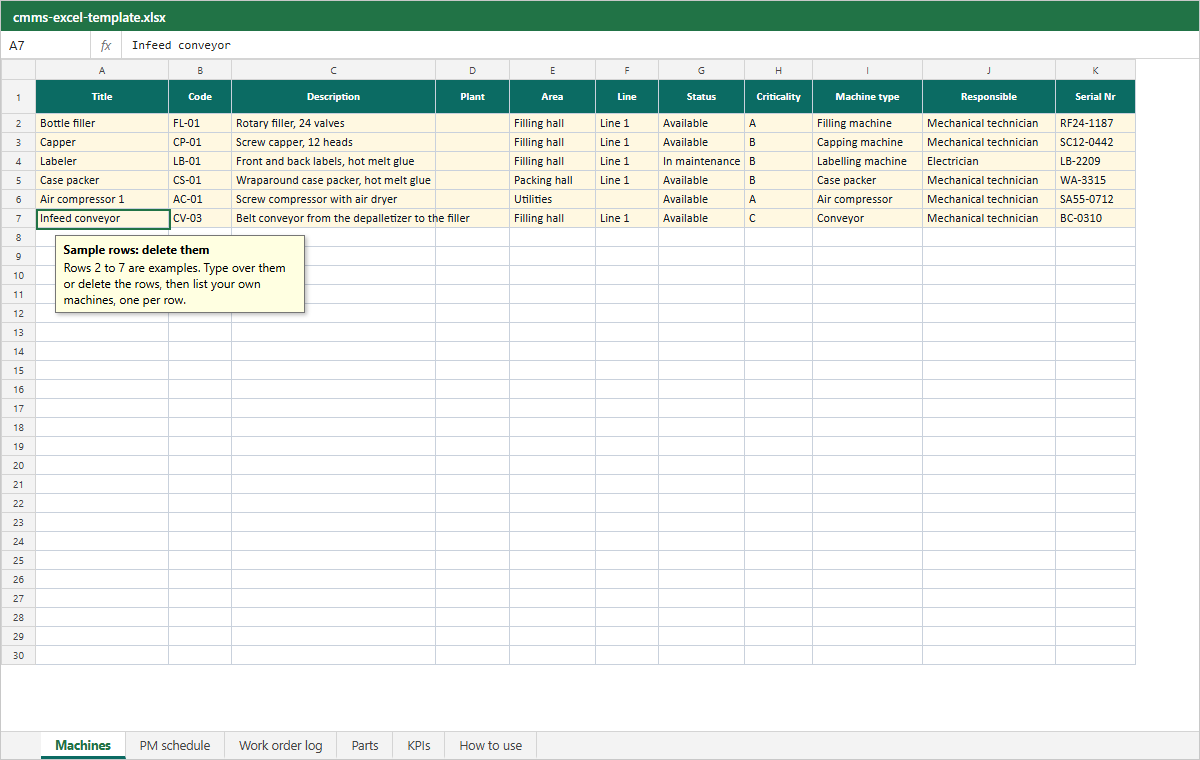
| Machines | Title, code, area, line, status, criticality, machine type, responsible, serial number and more | Nothing: it is the list the other sheets look up, and the sheet the free CMMS imports |
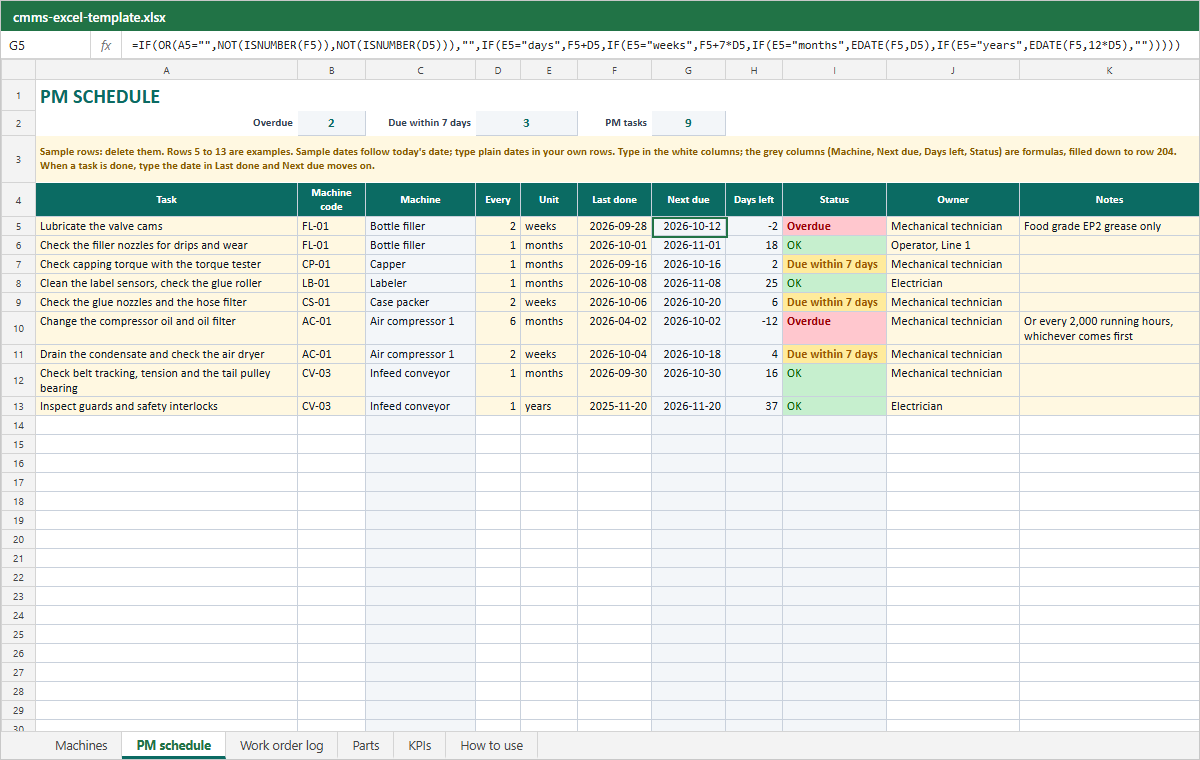
| PM schedule | Task, machine code, every (a number and days, weeks, months or years), last done, owner | Machine name, next due date, days left, and Overdue, Due within 7 days or OK |
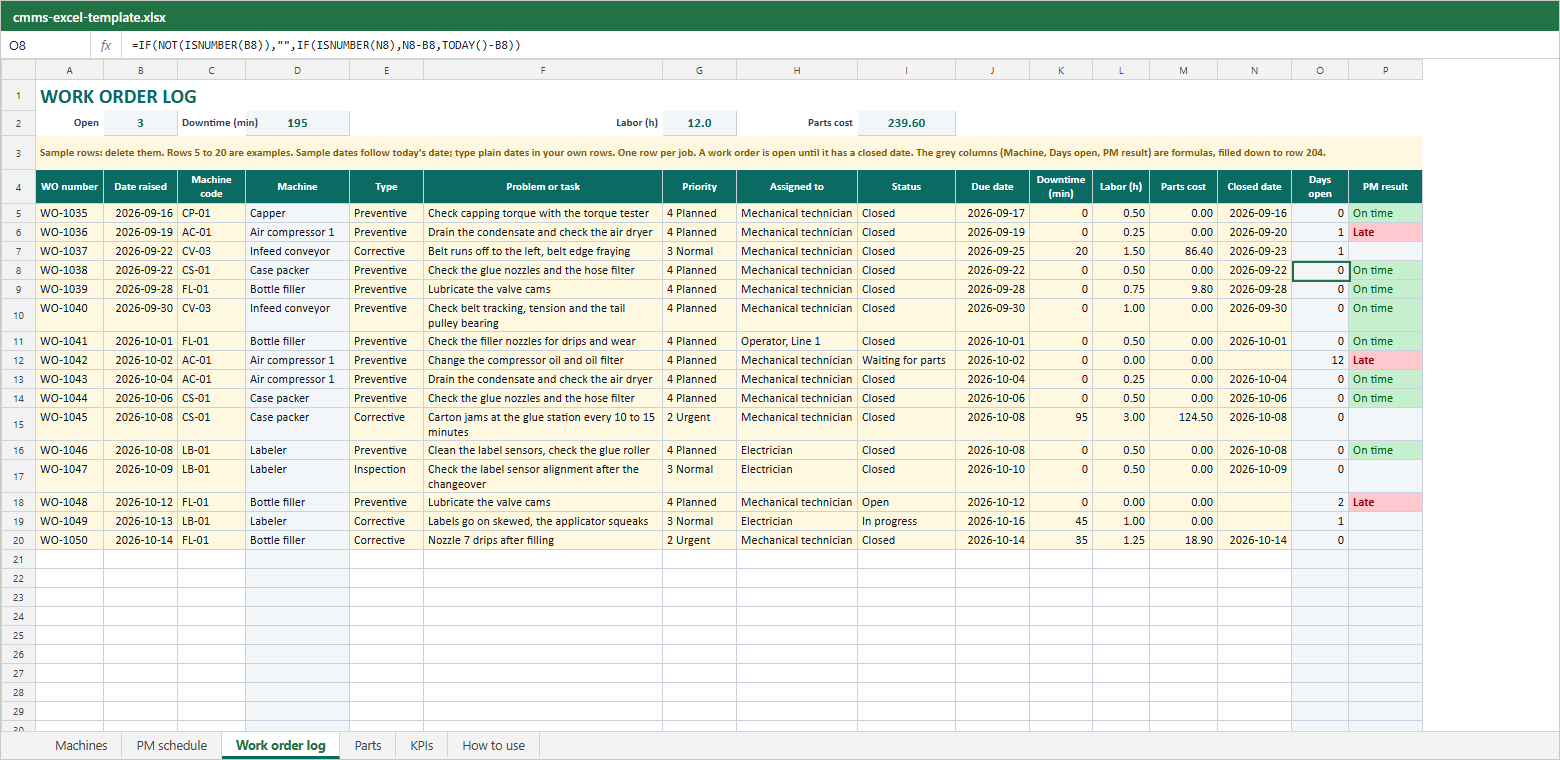
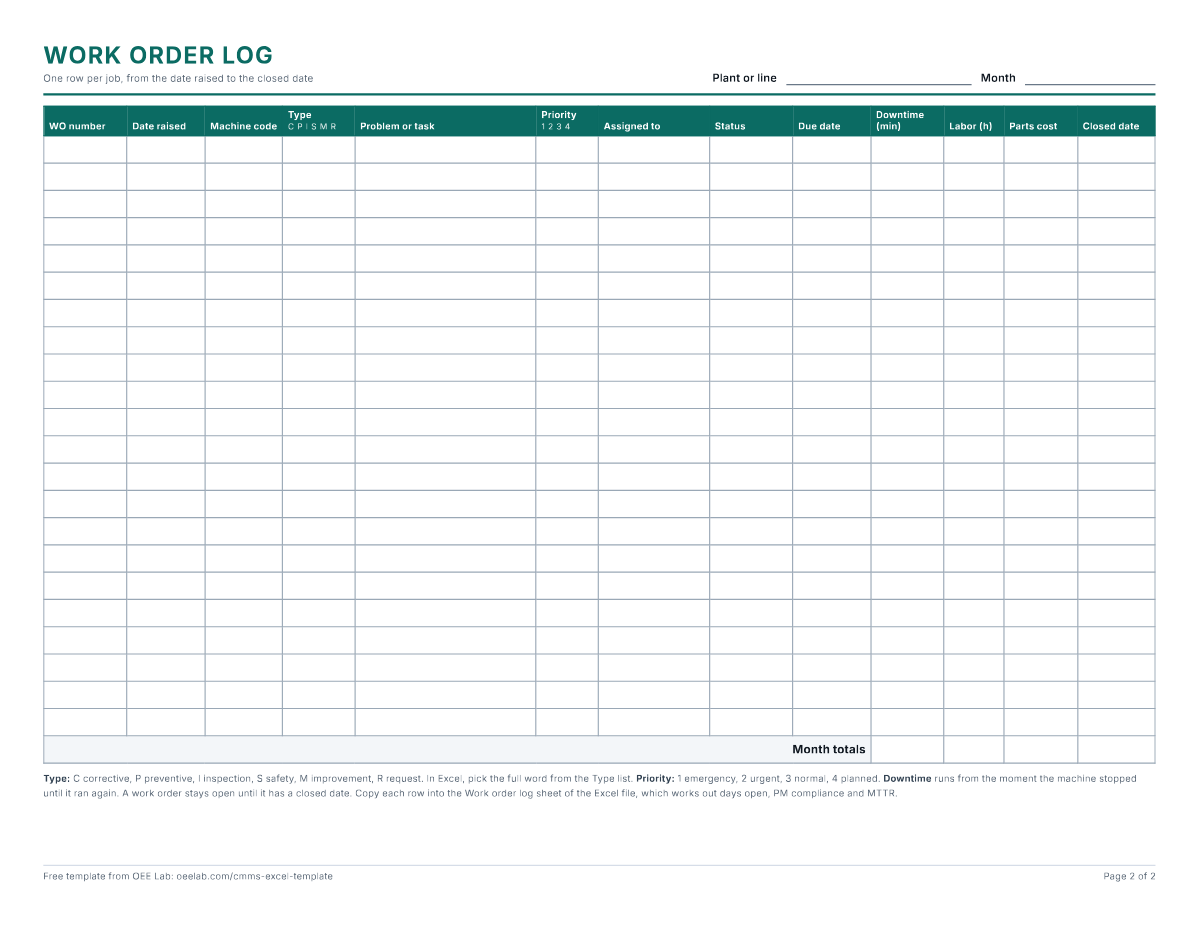
| Work order log | WO number, date raised, machine code, type, problem, priority, status, due date, downtime (min), labor (h), parts cost, closed date | Machine name, days open, and on time or late for preventive orders |
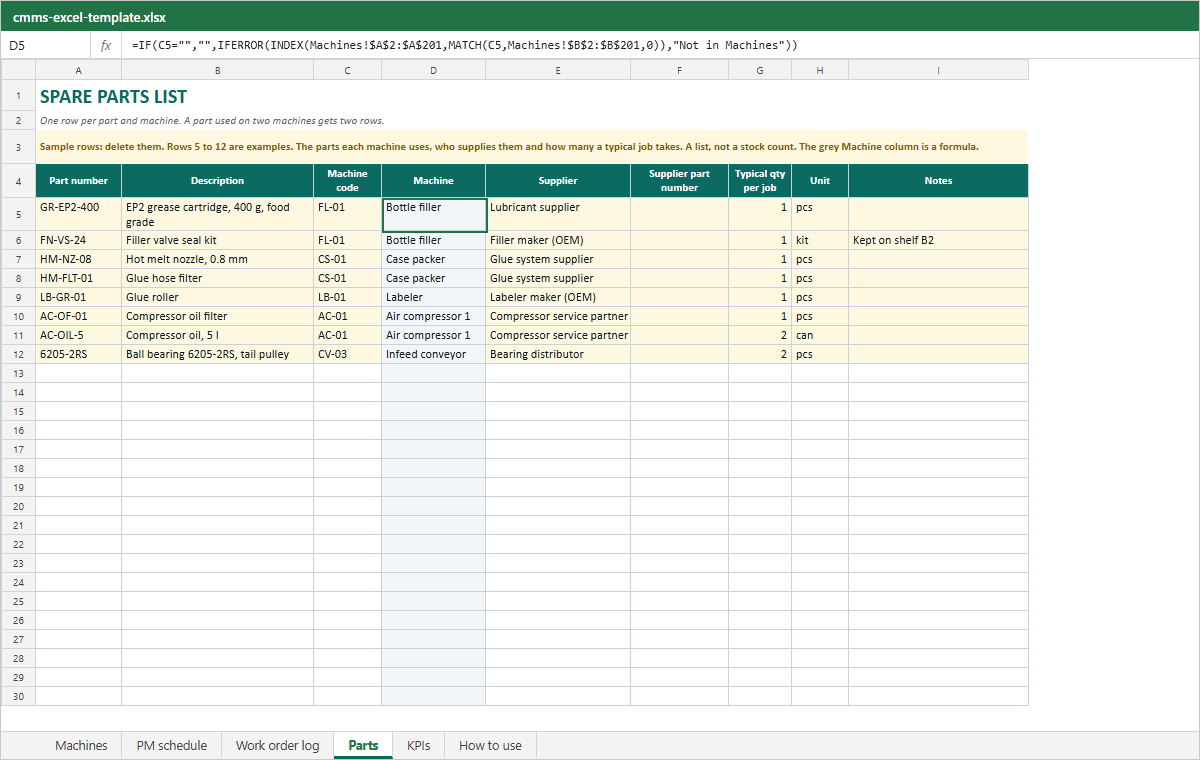
| Parts | Part number, description, machine code, supplier, typical quantity per job | Machine name |
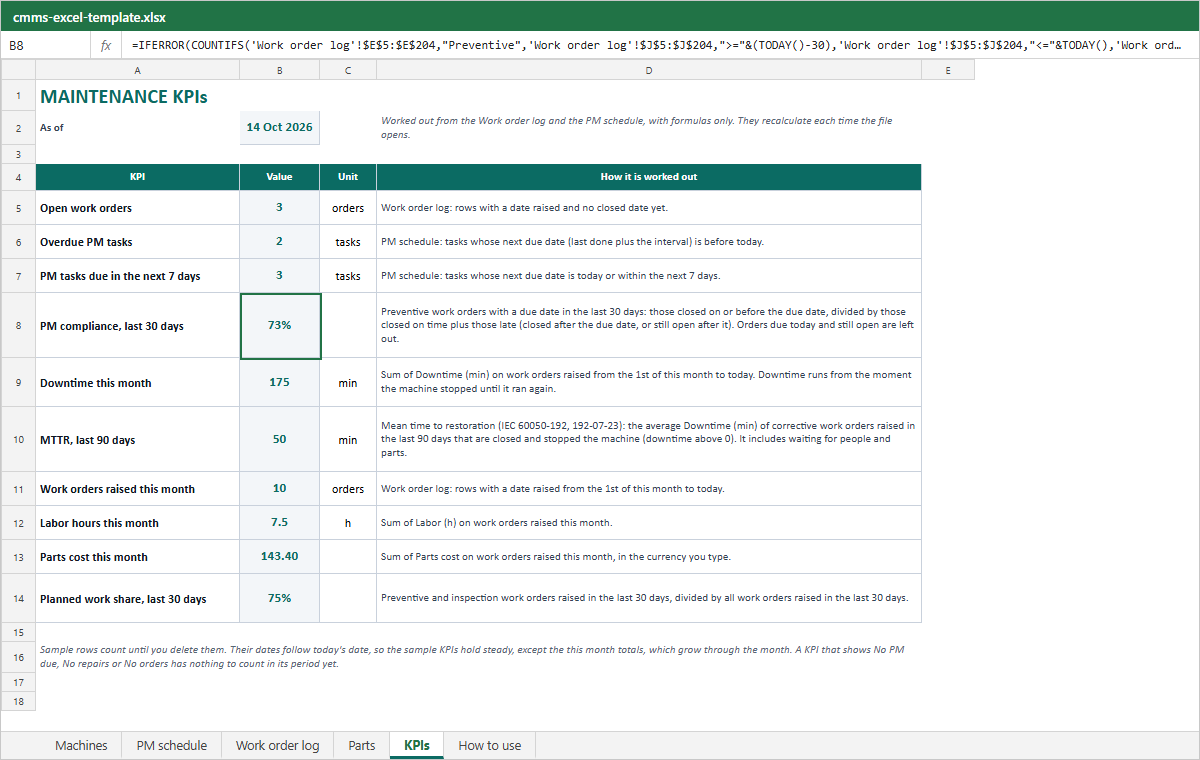
| KPIs | Nothing | Open work orders, overdue PM tasks, PM compliance, downtime this month, MTTR and five more |
Grey cells are formulas, filled down to row 204. A machine code that is not on the Machines sheet shows "Not in Machines" instead of a name.
Import the Machines sheet into the free CMMS
Row 1 of the Machines sheet holds the exact column names of the machine import in the free CMMS: Title, Code, Description, Plant, Area, Line, Status, Criticality, Machine type, Responsible, Serial Nr, Manufacturer, Model, Production date, Purchase value and Notes.
- Press Import it into the free CMMS, or in the app open Machines and press Import. On a first visit the app first asks for your plant's name: type it and press Import your machine list.
- Choose the .xlsx file. The Machines sheet is picked first, and the file is read in your browser, not uploaded.
- Check the preview and press Import. Empty Plant cells get your plant name, and names in Line and Responsible can be added as production lines and people.
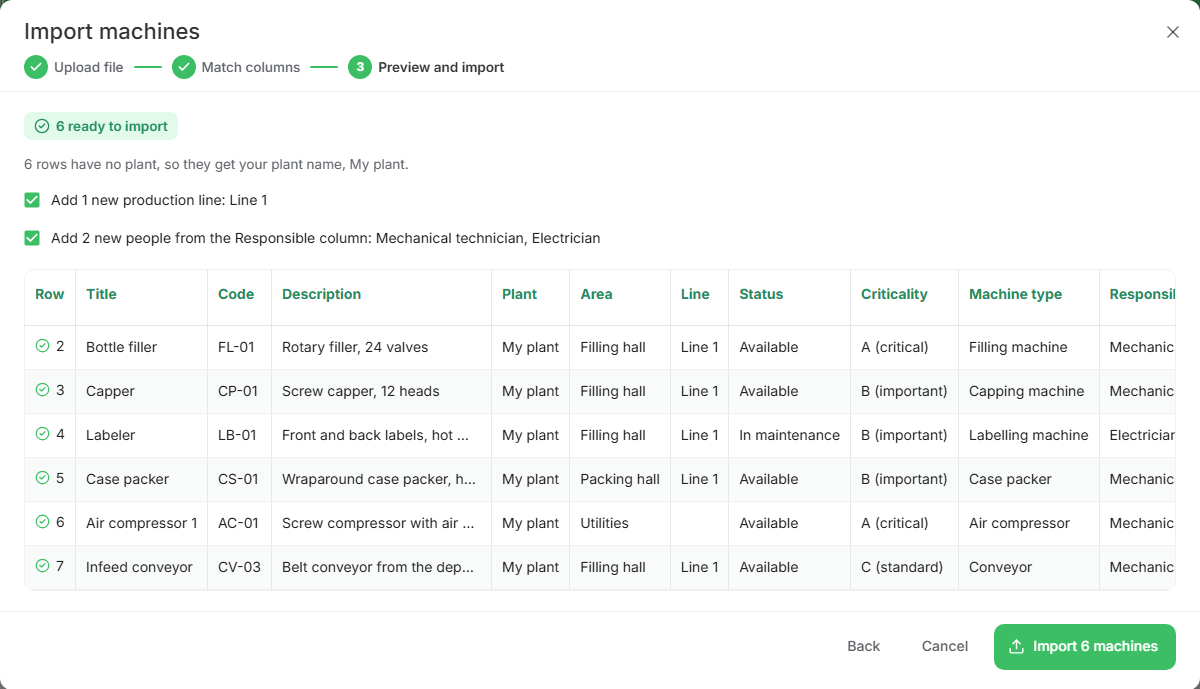
Swipe sideways to see the whole dialog, or tap it to open it full size.
Only the Machines sheet is imported. PM tasks and work orders are entered in the app: each PM task becomes a periodic plan that repeats every so many days, weeks or months (a yearly task is every 12 months), and each job is logged as a task. The app keeps your data in this browser on this device, with no sync between devices and no email reminders, so export a backup now and then.
How to use the template
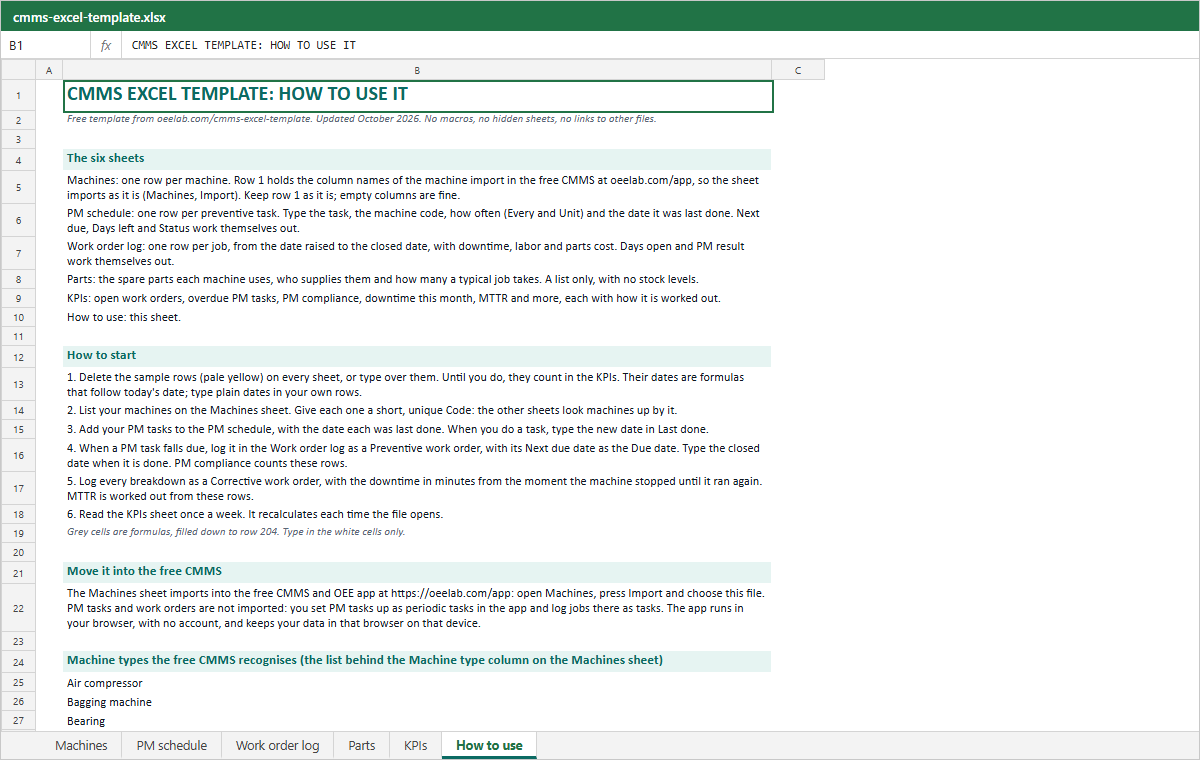
- Delete the sample rows. They are pale yellow on every sheet, and they count in the KPIs until you do.
- List your machines, one per row, each with a short, unique code such as FL-01. The other sheets find a machine by its code.
- Add your PM tasks with the date each was last done. When you do one, type the new date in Last done and Next due moves on.
- Log each PM task that falls due in the Work order log as a Preventive order, with its next due date as the due date, and type the closed date when it is done.
- Log every breakdown as a Corrective order, with the downtime in minutes from the moment the machine stopped until it ran again.
- Read the KPIs sheet once a week. On the floor, use the PDF forms and type them in at the end of the shift.
How the KPIs are worked out
Every KPI is a formula on the KPIs sheet with its definition next to it. With the sample rows, as of 14 October 2026:
| KPI | Sample | How it is worked out |
|---|---|---|
| Open work orders | 3 | Orders with a date raised and no closed date. |
| Overdue PM tasks | 2 | PM tasks whose next due date is before today. |
| PM compliance, last 30 days | 73% | Preventive orders due in the last 30 days and closed by their due date: 8 of 11. An open order past its due date counts as late. |
| Downtime this month | 175 min | Downtime of the orders raised since the 1st of the month. |
| MTTR, last 90 days | 50 min | Average downtime of closed corrective orders that stopped the machine: (20 + 95 + 35) / 3. |
MTTR here is mean time to restoration as IEC 60050-192 defines it (often called mean time to repair): from the stop until the machine runs again, including the wait for a technician or a part. The sample dates move with today's date, so the sample KPIs read the same whenever you open the file, apart from the this month totals, which build up through the month.
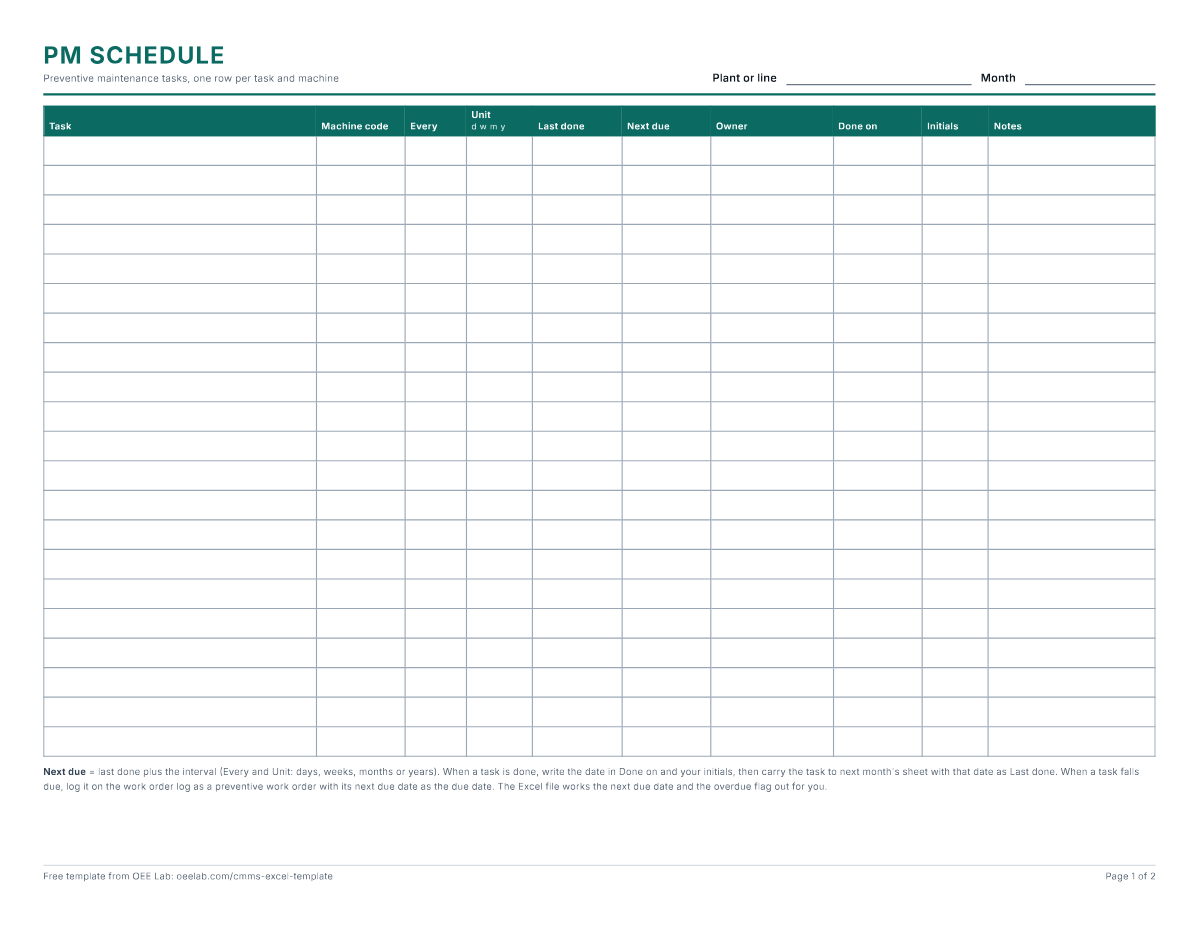
Download the printable forms
Two blank Letter pages for the shop floor: the PM schedule with done on and initials columns, and a month's work order log with a totals row.
Common mistakes
- Logging the repair time instead of the downtime. The stop starts when the machine stops, not when the technician arrives.
- Two machines with one code, or a code typed differently on another sheet. The lookup then shows the wrong machine or "Not in Machines".
- Moving a PM task on by typing a new Last done date without logging the order. The schedule moves on, but PM compliance never sees the job.
- Renaming the headers in row 1 of the Machines sheet. The import matches columns by name.
- A machine type the free CMMS does not know. The machine imports with its type left empty, so pick one from the list on the How to use sheet.
When a spreadsheet CMMS stops working
A workbook like this works for one maintenance team that shares one file and keeps it up to date. It starts to slip in the same places every time. Two people save different copies, and the log splits in two. Nobody hears that a PM task is due unless someone opens the file. The technician at a machine cannot see its repair history. Downtime is typed in from memory at the end of the shift, so short stops never reach the log, and the KPIs are only as good as the last row someone remembered to type.
The first step up is the free CMMS app: the same machines, PM plans and work orders, with a calendar, each machine's repair history and reports for PM compliance, MTTR and downtime (the app's MTTR runs from the start to the end of each urgent task, so it leaves out the wait before the repair starts), on one computer or tablet. When downtime has to come from the machines rather than from memory, and a technician should open the work order from the stop, that is where Fabrico comes in. Book a Fabrico demo to see it on your own machines.
CMMS Excel template FAQ
Is there a free CMMS template in Excel?
Yes. The workbook on this page is free to download, with no signup and no email. It has six sheets (Machines, PM schedule, Work order log, Parts, KPIs and How to use) with working formulas and no macros, and the PDF has the PM schedule and the work order log as blank forms.
Can Excel be used as a CMMS?
For one small team, yes: one file can hold the machine list, the PM schedule and the work order log, and formulas can flag overdue tasks and work out MTTR. Where it slips is covered under When a spreadsheet CMMS stops working above.
What should a CMMS spreadsheet include?
Four lists linked by a machine code: the machines, the preventive tasks with their intervals and last done dates, a log of work orders with downtime, labor and parts cost, and the spare parts each machine uses. A KPI sheet then counts open orders, overdue tasks, PM compliance and MTTR from them.
How do I calculate the next PM due date in Excel?
Add the interval to the date the task was last done: the last done date plus 7 times the number of weeks, or EDATE(last done, months) for monthly and yearly tasks. The PM schedule sheet does this in its Next due column and compares the result with TODAY() to show Overdue, Due within 7 days or OK.
Can I import this template into a CMMS?
The Machines sheet imports into the free CMMS at oeelab.com/app as it is, because its 16 column names are the ones the app's import looks for. PM tasks and work orders are not imported: you set PM tasks up as periodic plans in the app and log jobs there as tasks.
How many machines and work orders does the template hold?
200 machines, and 200 rows each in the PM schedule, the work order log and the parts list, with the formulas filled down that far. When the log is full, start a new file for the next period and keep the old one as the history, or move the work into a CMMS.
Related: free CMMS vs spreadsheets · moving from spreadsheets to a free CMMS · maintenance work order template · how to calculate MTTR
Downtime from the machines, not from memory.
Fabrico tracks OEE and downtime live from PLCs, IoT sensors or AI cameras, and a technician opens the work order from the stop. Where cameras are fitted, the video of a stop sits next to its machine data, with AI-suggested likely causes the team validates. Data hosted in the AWS EU region; ISO 27001, ISO 9001 and ISO/IEC 20000-1 certified.
Book a Fabrico demoWant help moving your spreadsheet into a CMMS?
Leave your work email if you would like the OEE Lab team to get in touch. To keep the workbook, use the Excel or PDF download above.
No newsletter, no spam.